Viewer Welcome Page overview
The Viewer A user role with read-only access to Panviva documents who can also submit feedback. Welcome Page, automatically displays when you log into Panviva. You can return to it at any time by clicking the Home icon  in the navigation toolbar.
Welcome Page are role-specific. Therefore, the Welcome Page(s) that you see are determined by your username and assigned roles.
Purpose
The Welcome Page serves as a central hub for:
-
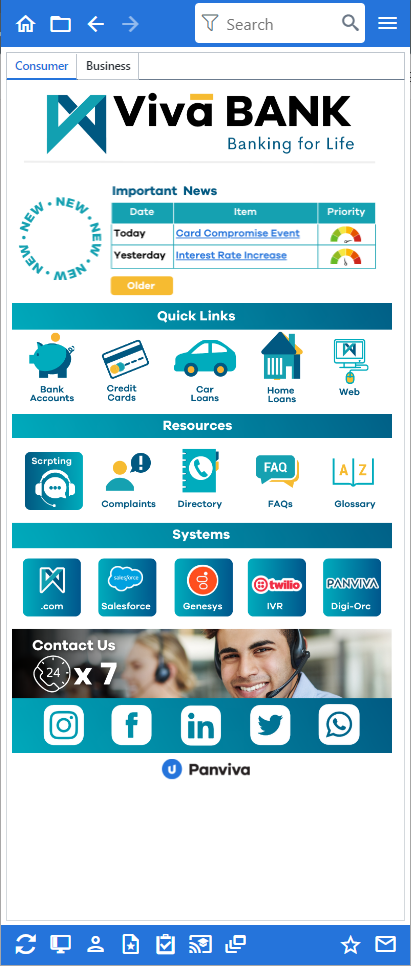
News and updates about processes, systems, and content changes affecting your work
-
Information about application availability or changes
-
Links to essential process, policy, procedure, and training information
-
General and team-specific announcements
Benefits
This centralized approach helps to:
-
Reduce email communication volume
-
Ensure all users access consistent, up-to-date content
Welcome Page Example:
Exceptions
The Welcome Page functions similarly to other Panviva documents, with a few exceptions:
-
Viewer History is not available for Welcome Pages
-
Change notifications cannot be created for Welcome Pages
-
Welcome Pages do not appear in search results
Welcome Page updates
Panviva Viewer automatically checks for Welcome Page updates based on your refresh settings and alerts you when the Welcome Page is updated.
For more information, see View Welcome Page updates.
Welcome Page Icons
The Viewer navigation toolbar provides the following ways to access content:
|
Icon |
Icon Name |
Description |
|---|---|---|
|
|
Home |
Displays your Viewer Welcome Page(s). |
|
|
Folder view |
Displays folders, sub-folders and documents. For more information, see View Folders and Content. |
|
|
Back |
Displays the previous document. |
|
|
Forward |
Displays the next document. |
|
|
Search |
For more information on the search functionality, see Search content. |
|
|
More |
Displays additional menus. Note: Displays some or all of the following menus depending on the screen displayed: For more information on More menu items, see More Menu. |
|
|
Refresh |
Displays the latest updates and clears all instances of any highlighted search terms in a document. |

|
Online Learning Documents accessed via the My Training folder in Viewer. Note that the online learning folder in the Folder view could be named differently if your administrator assigned a different name to the folder. | Displays training materials assigned to you. This icon will be displayed only in Single Folder view. |
|
|
Jump |
Moves the viewer window to the other side of the screen. |

|
Multi-View |
Displays a view in a new browser tab. For more information, see Multi-View. |


Related Content: